Development Jobs and Budgets
A Job is a development work package at a property. Jobs are managed under Development. They are separate from capital Projects used for CapEx or OpEx vendor work. For that comparison, see Projects.
Use jobs to budget, commit, and track spend for development scopes such as site work, shell, MEP, or tenant improvements.
Setup Before You Create Jobs
Development budgeting depends on the property’s Cost Breakdown Structure (CBS).
- Create or select a Cost Breakdown Structure for your organization.
- Add the cost codes you need, including leaf codes for budget entry.
- Assign that CBS on the property.
Credence blocks job creation if the property has no Cost Breakdown Structure. Properties that are not used for development can leave CBS blank. See Cost Breakdown Structures.
Creating a job also creates the property's primary Development Budget if one does not already exist. Jobs at the same property share this budget. The new budget starts empty; job creation does not add adjustments or budget amounts.
Jobs and Cost Codes
Each development budget line is the intersection of one job and one cost code from the property’s assigned CBS.
- Leaf cost codes hold the amounts you enter.
- Parent cost codes roll up their children for review.
- Jobs at a property only see cost codes from that property’s CBS.
- Development purchase orders for a job only offer cost codes from that same CBS.
Changing the CBS on a property changes which cost codes appear for jobs at that property going forward.
When the property CBS changes, empty Development Budget containers are recreated using the new CBS. Any Development Budget adjustment, including a draft or rejected adjustment, blocks changing or clearing the CBS. Clearing the CBS removes empty containers; assigning a CBS again creates a primary Development Budget for existing jobs.
When a Development Job is saved, Credence validates its property and configured account against its current budget, active purchase-order charges, and active non-tax payable charge items. Drafted purchase orders and payables do not participate in this check. The Job property cannot change when current budget cost codes belong to another CBS or active related charges use another property. If the Job has an account, those active related charges must use the same account.
Budget Amounts
Credence tracks how each cost-code budget is used across different categories. Four amounts always add up to the current budget:
Current Budget = Spent + Approved Spend + Committed + Available
Budget category definitions
- Spent: Amounts on approved invoices that have been paid and matched.
- Approved Spend: Amounts on approved invoices that have not been paid and matched.
- Invoiced: Amounts on approved invoices. Spent + Approved Spend
- Committed: Amounts on active contracts that have not been invoiced.
- Available: Budgeted amounts that have not been invoiced or committed. Current Budget - Invoiced - Committed
- Contracted: Amounts on active contracts and invoiced amounts on closed contracts. Spent + Approved Spend + Committed. Never exceeds the charge total.
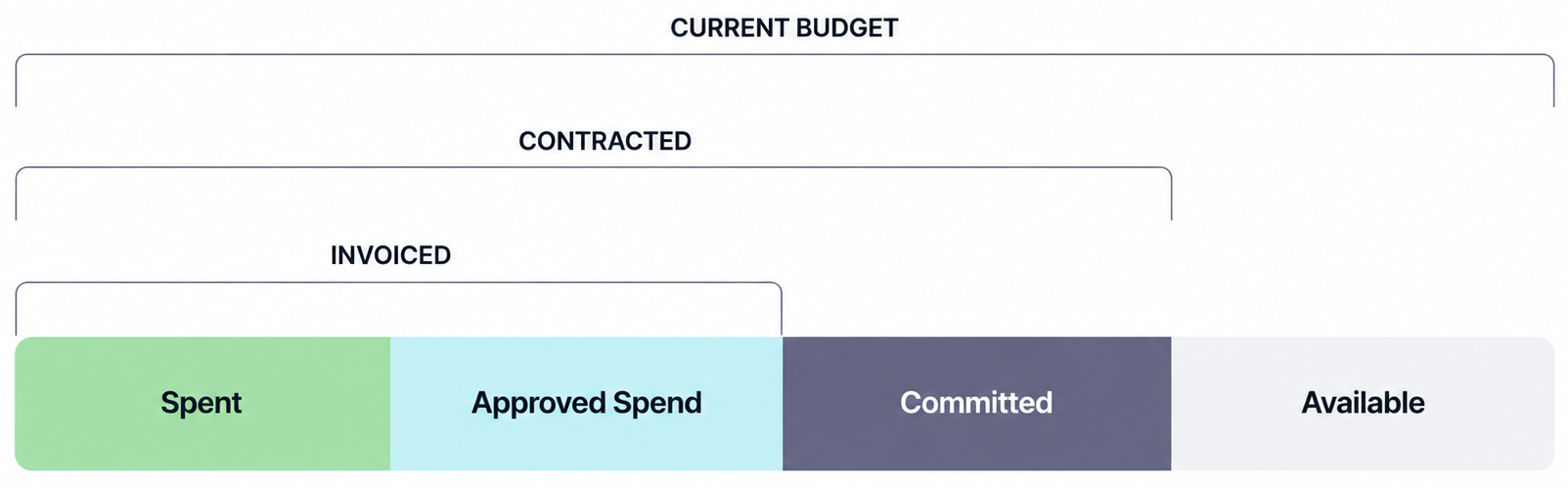
Budget category notes
The Contracted amount never exceeds the amount of the contract's charges. Over-invoicing does not raise the Contracted amount above the charge amount. After a contract is closed, any amount invoiced against the contract remains in the Contracted amount. Any non-invoiced amount is released back into the Available budget.
Available budget can be negative. Charge and portfolio tolerances do not change Current Budget; they only affect whether the next purchase order or invoice can be approved.
Approving a development purchase order or change order is blocked when it would take any job and cost-code budget line past its Available amount plus the portfolio's budget tolerance. A budget line with no current budget, or a portfolio without a budget tolerance limit, does not block approval.
Category and subcategory figures are aggregates of the underlying job and cost code lines.
Development Budget Views
Use the Jobs List or Development Budget to review cost-code budgets across jobs for the selected properties.
The Development Budgets list shows the primary Development Budget for each property in your property selection, with Original, Current, and Expected totals from approved adjustments. Open a budget to review its cost-code journal and make adjustments. The opened budget fixes the property scope; changing the global property selection does not change that budget. Its Job filter narrows the journal and adjustments to jobs at that property. Budgets cannot be selected for a combined view.
Use Budget Pivot to compare the same cost-code hierarchy across jobs. Leaf cells are the editable budget grain. Aggregate category and subcategory totals are read-only rollups.
Select a cost-code row on the Development Budget to open Budget Scope for that cost code across the jobs in the selection. Scope uses the jobs in the job filter, or all accessible development jobs for the selected properties when no job filter is set. The page shows the cost code's rolled budget summary, one row per job with that cost code's budget amounts, and the purchase orders and payables related to that cost code. Selecting a parent cost code rolls up its child codes. Job rows link to that job's detail narrowed to the cost code.
Budget Scope requires the jobs in the selection to share one Cost Breakdown Structure. When the jobs span more than one CBS, cost-code rows are not clickable and the budget table explains that you must narrow the job or property selection to a single cost breakdown structure.
On a single job, you can review budget history for a leaf cost code and narrow related purchase orders and invoices to a selected cost code scope.
Budget Adjustments and Approval
Changes to Current Budget are recorded as signed Budget Adjustments for each Job and leaf cost code, grouped into one adjustment per Budget. Each adjustment follows its own approval rules: saving posts it immediately when its Budget has no applicable Budget Adjustment workflow, or creates a draft without changing approved balances when a workflow applies. An update across multiple properties can therefore post some adjustments immediately and leave others as drafts for submission. If saving or immediate approval fails, none of the changes from that save are retained.
The person preparing an adjustment can review and edit its description, Jobs, cost codes, amounts, and the required reason for each line before submission. Editing changes the stored adjustment amounts; it does not overwrite the approved Current Budget. A draft can also be deleted while it is not in an active workflow. Once submitted, the adjustment remains unchanged while reviewers act on it. The submitter can withdraw a pending workflow with a comment, edit the returned draft, and submit it again.
If an applicable workflow is configured, the preparer opens the draft and initiates that workflow; Current Budget changes only after final approval. Approved adjustments are permanent journal entries, including adjustments posted immediately when no workflow is configured. Correct an approved mistake with a new adjustment and an explanatory reason.
Drafts store changes rather than target balances. For example, a draft that adds $20 continues to add $20 even if another adjustment is approved first. The detail page shows the draft against the latest approved Current Budget. Credence checks the live balances again at final approval and blocks the entire adjustment if any Job and cost-code balance would become negative.
On an opened Development Budget, a proposed-change callout appears beside each leaf cost code with an outstanding Current draft. Select the callout to review the complete proposal, including related source and destination lines for transfers and contingency draws, then select a proposal card to open its detail page for editing or workflow action. The Workbench also shows Current drafts, pending approvals, and approved adjustments. Expected Budget changes do not enter this workflow. They continue to post immediately for users with permission and remain separate from Current Budget.
Development Liquidity
Development Liquidity forecasts cash needs for the selected jobs and reporting periods. The report is always organized by cost code, then job. Expand a job to review its contracts, uncommitted spend, and Liquidity Cash Events. Start Period payables appear beneath their contract, and standalone cash events appear beneath the Liquidity Cash Events subtotal.
The selected Start Period is always the draw-comparison month. Its first column is labeled {Mon YYYY} Draws and includes non-zero items from capital events whose Request Date falls within that month. Drafted and approved events are included; rejected and cancelled events are excluded. The report uses each capital-event item’s allocated amount, so an open payable that has not been added to an eligible Start Period capital event does not appear in Draws. To prepare a future draw early, select that future Start Period and give the capital event a Request Date in the same month.
The adjacent {Mon YYYY} Projected column provides the expectation for that Start Period. It includes enabled purchase-order, insurance, real estate tax, and Liquidity Cash Event timing. Automatic Uncommitted Spend is excluded from the comparison month, while an explicit manual override in that month is included. Contract rows compare the projection with the invoices included in Draws, while job and cost-code rows roll up both amounts.
For purchase orders, Credence starts with leftover Committed on that open charge: charge total minus Spent and Approved Spend, floored at $0. Draft invoices and tax lines do not reduce leftover. Closing a purchase order releases leftover from the forecast. Credence then adds back the invoice amounts included in Draws before applying the contract's liquidity timing. The formula is Committed leftover + Start Period Draw Invoices. This keeps invoices in the selected draw represented in Projected even when those invoices have already reduced leftover.
Start Period manual timing overrides replace the automatic contract projection and retain the manual-value highlighting. Standalone Liquidity Cash Events also appear as projected values, but they are flagged for review because they do not have a direct link to a particular invoice. Warning flags identify missing, unplanned, or different contract amounts without duplicating warnings on job and cost-code totals.
Capital-event lines without a payable source appear under Manual Capital Event Lines. These lines are associated with the selected properties rather than a specific job or cost code, so they remain visible when the job filter changes.
Future projected purchase-order spend, insurance and real estate tax charges, uncommitted spend, and standalone Liquidity Cash Events begin in the month after the selected Start Period. This is also true when the Start Period is in the future: the future month receives the Draws and Projected comparison columns, and ordinary future projections begin one month later.
Use Liquidity Timing on a purchase-order contract or Uncommitted Spend row to choose how Credence projects the source balance and to enter manual timing. Straight Line is the default and spreads the remaining balance evenly. S-Curve places less of the remaining balance near the beginning and end of the source range and more near the middle. Manual turns off the automatic projection so only the manual timing appears in the forecast.
Automatic Uncommitted Spend uses the Start Date and End Date on the current job-and-cost-code budget line. Job-level dates do not replace missing budget-line dates. If either budget-line date is missing, manual timing can still appear, but the unresolved balance remains in Remaining to Forecast instead of being projected automatically.
Manual timing values replace automatic timing in the same month and are highlighted with the Credence accent color. With Straight Line or S-Curve selected, Credence subtracts the manual values from the source balance and redistributes the remaining automatic amount across the other eligible months. Manual timing does not need to cover the full source balance. When Manual is selected, any uncovered amount remains in Remaining to Forecast. Insurance and real estate tax charges continue to follow their payment schedules. Standalone Liquidity Cash Events are also highlighted as manual values.
Select a future forecast amount to review its Forecast Details. Automatic purchase-order projections calculate Committed Total as leftover Committed on that charge (charge total minus Spent and Approved Spend, floored at $0). Automatic Uncommitted Spend projections calculate Uncommitted Total as Available floored at $0 (Current Budget minus Spent, Approved Spend, and Committed). If manual timing uses part of the source total, Forecast Details also shows the manual subtraction and the amount that remains automatically projected.
Manual Timing and Liquidity Cash Event amounts include richer Forecast Details as well. The popover titles the contribution by type, shows any notes, the period contribution, and the event or override total. One-time items show the cash date and a One-time timing method. Date-range Liquidity Cash Events can use Straight Line or S-Curve; Manual applies only to the Remainder Projection setting for a contract or Uncommitted Spend source. Date-range items show the date range and projection method. When an override uses a percentage of its source, Forecast Details also shows the source basis and percentage math. Manual Timing entries note that they replace automatic timing in that month, and an account name appears when the cash event has a bank or COA account.
Future Spend collects forecast movements dated after the selected report range. Select a direct contract, Uncommitted Spend, or Liquidity Cash Event amount in this column to see what contributes to it. This keeps forecasted amounts outside the visible periods separate from Remaining to Forecast.
Remaining to Forecast is the source total minus the amounts forecast in the displayed periods and Future Spend. A positive amount is not yet forecast, while a negative amount means manual timing exceeds the source total. Start Period Draw payable lines do not reduce this balance because their amounts have already been invoiced.
An excluded forecast source remains visible when Credence can place it under a valid job and cost code. It has no forecast movements, and its unresolved amount remains in Remaining to Forecast. A warning flag beside that amount explains the reason, such as a missing start date, missing payment schedule, invalid date range, or timing that ends before the selected report starts. This keeps committed or planned spend visible while calling attention to the setup that prevents Credence from forecasting it.
The financial columns provide the report's budget and actual-spend context. Total is the current approved budget for a Job or cost-code row and the charge total for a Vendor Charge row. Spent, Approved Spend, Invoiced, Committed, and Contracted retain the same definitions used in the Development Budget. Projected is leftover Committed on a purchase-order charge, available budget for Uncommitted Spend, or the event amount for a Liquidity Cash Event. Job and cost-code Projected values sum their child sources. Start Date and End Date show the applicable budget or forecast timing range where one exists.
A cost code counts as zero only when it has no visible liquidity activity, Future Spend, Remaining to Forecast balance, or financial amounts. Use the zero-row toggle to show or hide those entirely empty cost-code rows.
Use Select Columns to choose which financial and forecast columns appear. By default, the report shows Total, Spent, Approved Spend, Committed, Projected, Start Period Draws, Start Period Projected, Future projections, Future Spend, and Remaining to Forecast. The Line Item hierarchy always remains visible. Future projections controls every month after the Start Period as one selection rather than allowing individual months to be hidden.
The downloaded spreadsheet follows the same selected columns, expanded hierarchy, Start Period Draws and Projected comparison, and manual-value highlighting as the on-screen report. When Future projections is selected, the download includes every applicable later month.
Development Cash Flows
Development Cash Flows shows historical actual spend for the selected jobs and reporting periods. The report is organized by cost code, then job, with an Uncoded Spend section for charges without a cost code.
Period columns bucket amounts by payable accounting period. Use Include Approved Spend in Report Settings to switch between Invoiced amounts (approved active payables) and Spent amounts (paid or matched spend only). A Total column sums each row across the selected period range.
Each non-zero period or total amount links to a source detail page listing the underlying payable charge items for that scope.
Draft payables are excluded. Tax payable charge items are included in period actuals.
Development Contracts
Development purchase orders are managed under Development Contracts. Each charge must select:
- A development job
- A leaf cost code from that job property’s Cost Breakdown Structure
That keeps contract commitments aligned with the same job and cost code used for budgeting.
Common Scenarios
- Before vertical construction starts, an administrator assigns a CBS on the property and creates jobs for Site/Core/Shell, Fit Up, and Soft Costs.
- A development team compares electrical budgets across several jobs at the same property in Budget Pivot.
- A project manager updates the approved budget for one job and cost code without changing other jobs.
- A reviewer checks why available budget is lower than current budget after commitments and spend are applied.
- An AP user creates a development purchase order and selects cost codes only from the job property’s CBS.