Workflows
Overview
Workflows route records through role-based approval before Credence treats them as approved and ready for downstream use. A workflow defines who must review an item, in what order, and under what conditions routing may split to different approvers.
Credence uses workflows across payables, leases, projects, vendors, and other record types. The same concepts—draft, initiate, pending approval, approve, reject, and the Workbench—apply regardless of object type.
Definitions
- Workflow — A configured approval path for a specific object type (for example payables or leases).
- Workflow run — One time a workflow is initiated on a specific record.
- Submitter — The person who initiates the workflow run.
- Approver — A person whose role matches the current approval step.
- Drafted — The record is created or returned for editing and is not currently in an active approval run.
- Approved — The record completed approval and is active for its intended use in Credence.
- Rejected — The record was not approved; the run ended without approving the record.
- Proposed Edits — Controlled changes to an already-approved record that require a separate approval run before they replace approved values.
Record lifecycle
Reading record status
Record details and manage lists show one status badge. Drafted means no approval run is active; Pending Approval means review is underway. Approval On Hold means the latest action in that active review is Hold. A later action clears the Hold indication, and a completed run no longer shows review status.
After approval, records with a lifecycle show that state (such as Active, Closed, or Delinquent). Records with settlement status show payment progress. Records without a separate lifecycle or settlement state show Approved. Bundle posting is shown separately from approval. Closed projects and jobs retain their Closed status.
Where Proposed Edits is supported, an activity restriction shows Activity Disabled. A revision that keeps activity enabled retains the record's lifecycle or settlement badge; workflow history provides the review detail. Status badges do not themselves change approval, posting, payment eligibility, or lifecycle.
Status filters use these distinctions: selecting Drafted excludes records already in active approval. Other filters retain their existing meaning, including Posted and Reversal on bundles. Rent-roll occupancy and execution states are separate from approval.
flowchart LR
  draft[Drafted record] --> initiate[Initiate workflow]
  initiate --> pending[Pending approval]
  pending --> approved[Approved]
  pending --> rejected[Rejected]
  pending --> returned[Returned to submitter or prior step]
  returned --> draft
- A record starts in Drafted status. The submitter can edit it freely.
- The submitter selects a workflow and chooses Initiate. The record enters Pending approval and is generally read-only to the submitter until the run completes or is returned.
- Approvers action their steps. When all required steps complete, the record becomes Approved.
- If an approver Rejects, the record becomes Rejected and the run ends.
- If an approver Deny → Submitter or the submitter Withdraws, the run ends without rejecting the record. The item returns to Drafted for correction and can be initiated again.
Completion of a workflow may also update other status labels on the record depending on how your organization configured the workflow.
When no configured approval workflow applies to a record, Approve completes the default workflow immediately and records that approval in workflow history. If a configured workflow applies, select that workflow and initiate review; direct approval cannot bypass it, even when your access does not include that workflow.
Initial approval happens once. Approved records can use Proposed Edits only where their object type already supports it. Payables, bundles, budget adjustments, and capital events do not start a second initial approval run.
Global Workbench
The Workbench is the central place to find workflow-related items. Open it from the Workbench landing page or from object-specific workbench panels (for example Payables Workbench).
Workbench tabs and filters:
| Tab | Sub-filter | What appears |
|---|---|---|
| Drafted | Created by me | Draft records you created that are not in an active approval run |
| Drafted | Created by others | Draft records others created that you can access |
| Pending Approval | Pending approval by my role | Items waiting on a step your role can action |
| Pending Approval | Submitted by me | Items you submitted that are still in approval |
| Pending Approval | Pending approval by others | Pending items you can see but cannot action on the current step |
| Approved | Last 7 days | Records finalized through workflow in the last seven days |
| Approved | Last 30 days | Records finalized through workflow in the last thirty days |
Workbench access depends on your view permissions for each object type. Workbench lists are not limited by the global property selector.
While an item is pending, the submitter typically finds it under Pending Approval → Submitted by me. After Deny → Submitter or Withdraw, it appears again under Drafted.
Approval actions
| Action | Who | Effect |
|---|---|---|
| Approve | Current-step approver | Advances the run to the next step or completes it |
| Deny (to prior step) | Approver | Routes the item back to an earlier approver; comment required |
| Deny → Submitter | Approver | Ends the run without rejecting the record; returns it to the submitter for edits; comment required |
| Hold | Approver | Pauses the run with the current approver; the record stays pending; comment required |
| Reject | Approver | Ends the run and marks the record Rejected; comment required |
| Withdraw | Submitter | Ends the pending run without rejecting the record; the record stays Drafted; comment required |
Reject ends the record as Rejected. That is different from Proposed Edits, where approvers may Reject a pending proposal without changing the record’s approved status (see below).
Hold pauses an approval step. It is not the same as Disable activity under Proposed Edits, which limits related operational activity while a proposal is under review.
After Deny → Submitter or Withdraw, the submitter may edit the record and Initiate again. Approval starts over at the first step.
Role-based routing
Users are assigned roles (for example Staff Accountant or Head of Finance). Workflow steps specify which roles may approve. A user needs access to the record and a direct or actively delegated reviewer role on a portfolio related to that record. Holding the reviewer role on a different portfolio does not qualify. A step without required roles is open to users who can access the record, subject to its submitter restriction. If a step requires a role but the record has no related portfolios, no reviewer qualifies until the portfolio association is established.
Submitting a record requires permission to change that record. Reviewing a pending step uses its workflow role requirements; an assigned reviewer does not need permission to edit the record to approve that step.
Multiple users may share a role; any of them can approve that step. Multiple roles may be assigned to a step when your process requires it. Only users with workflow configuration permissions can change workflow definitions and role assignments.
A step waiting for incoming branches can still appear in review queues and reminders. Approve, Deny, Hold, and Reject remain unavailable until all incoming steps finish. If the record cannot currently be approved, otherwise eligible reviewers may still Deny, Hold, or Reject it.
Approval routing examples
A simple workflow with approvals at three levels

Flow: Staff Accountant approves or denies → if approved, Senior Accountant approves or denies → if approved, Head of Finance approves or denies → if approved, the workflow completes. A denial at any step can route the item back to a prior approval step for re-evaluation.
A simplified split workflow with parallel routing
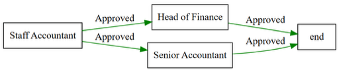
After the first approval, routing conditions may send the item to different approvers—for example by amount threshold or by record attributes your organization defines.
When multiple branches are active, approval at the end of one branch stays recorded while the other branches finish. The record becomes approved only when a branch has reached final approval and no steps remain pending in that run. Until then, the record's approval effects, such as posting a bundle or applying a Current budget adjustment, wait.
Configuring workflows
To create or update workflow definitions in Credence, work with the Credence support team ([email protected]).
When adding or editing a workflow definition, administrators configure:
- Prevent submitter approval — Off by default. When enabled, the submitting account cannot Approve, Deny, Hold, or Reject any review step in that run, even if it holds or receives a delegated reviewer role. The submitter can still view the record and Withdraw under the usual rules. This applies to initial approval and Proposed Edits. The original record creator is not excluded unless they submit that run.
- Proposed Edits Activity — Controls related activity while an already-approved record has Proposed Edits under review:
- Keep activity enabled — Related operational and financial activity on the record can continue for already-approved values.
- Disable activity — Credence blocks new related activity tied to the record until the proposal is approved or rejected.
New workflows default to Disable activity. The choice is stored with each Proposed Edits submission when the proposer initiates approval, not when the workflow definition is saved later.
Prevent submitter approval is stored with each run when it is submitted. Changes apply only to future submissions, including resubmissions and Proposed Edits. Pending runs keep the setting they started with. When the setting is enabled for a run, the submitter continues to find the item under Submitted by me, but does not receive review reminders or appear as an eligible approver. If no other reviewer is eligible, the step stays pending until another eligible reviewer acts or the submitter withdraws. Steps are never skipped because the submitter is excluded.
Every new workflow submission requires an explicit actor account, recorded as that run's submitter. The same identity, permission, and review rules apply to every account, regardless of who or what operates it. Withdrawing or returning an item and submitting again starts a new run with that submission's initiator. Withdraw and Deny → Submitter retain their existing rules and use the recorded submitter account. Historical runs without a recorded submitter are attributed to the system account; existing recorded identities are retained.
This option controls workflow review. It does not change direct-edit permissions for approved records.
Editing workflow definitions
The workflow editor applies three editing rules:
| When changes are allowed | Configuration |
|---|---|
| Anytime | Workflow and review-step names, description, portfolio assignments, activation, and settings captured on submission |
| No active runs | Required reviewer roles and condition text on existing routes |
| Before first use | Adding or removing steps or route connections, object type, and initial/final step classification |
History displays current workflow and step names. Renaming does not change recorded actions, actors, timestamps, or comments. Prevent submitter approval and Proposed Edits Activity retain their existing submission-time rules; changing them does not change settings already recorded on runs.
An active run counts even before it creates approval steps. A workflow remains used after all runs finish, including rejected or withdrawn runs. User access, role membership, and delegation continue to apply normally. A role referenced by a workflow step cannot be deleted; when no runs are active, its workflow requirement can be changed or removed before deleting an otherwise unassigned role.
For structural changes to a used workflow, create another independent workflow. Both may remain available for selection on new submissions. Deactivating the old workflow stops new submissions through it while its existing runs continue and its history remains available to users with access.
Editing already-approved records
Approved records support two different edit paths.
Edit Approved permission
Users with Edit Approved permission (see Permission Groups) may change controlled fields on approved records directly. Changes apply when they save; no Proposed Edits run is required.
Proposed Edits
For supported object types, users who edit approved records without Edit Approved permission use Edit, then Next, then either Save or Initiate on the Submit Proposed Edits page.
| Type of change | What you do | Result |
|---|---|---|
| Informational only | Next, then Save on Submit Proposed Edits | Changes apply without a new approval run |
| Controlled fields, or mixed informational and controlled | Next, then Initiate and select a workflow | A new approval run starts; controlled values apply only after final approval |
Rules:
- Approved values on the live record stay in place until controlled changes are approved.
- Next does not write controlled changes to the live record.
- Only one open Proposed Edits submission is allowed per record at a time.
- Discard Changes on Submit Proposed Edits clears the in-progress proposal before you initiate.
- After submit, the record shows a notice that proposed edits are under review, with a View Proposed Edits link. Changed controlled fields are highlighted on the record. Approvers open View Proposed Edits to review changes. Reject, Deny → Submitter, or the proposer's Withdraw ends the proposal without changing approved controlled values. The proposer can Edit and initiate a new proposal.
- The comparison table shows Current and Proposed. If a field changed on the live record after submit, the table also shows Baseline alongside Current and Proposed so reviewers can see what changed since submission.
- On Submit Proposed Edits, the Approval column marks each row Required (controlled; needs workflow approval) or Not Required (informational; applied immediately after submission). An info icon next to the column header explains the same distinction.
Proposed Edits availability depends on the object type and your permissions. Credence may add support for additional object types over time.
Proposed Edits activity while a proposal is pending
The workflow’s Proposed Edits Activity setting applies when the proposer initiates:
| Setting | While the proposal is pending |
|---|---|
| Keep activity enabled | Related activity on the record can continue for already-approved values |
| Disable activity | Credence blocks new related activity tied to the record until the proposal is approved or rejected |
Important distinctions:
- The record stays Approved and active in Credence. Proposed Edits does not move the record back to Drafted.
- Disable activity is not Hold on an approval step.
- Which actions are blocked depends on the object type. For vendors, Credence blocks new contract and payable approval and payment processing.
- You can still view records and work on unrelated items.
Common scenarios
- Multi-step payable approval — A property accountant submits a payable, it routes through sequential approvers, and becomes Approved when the final step completes.
- Withdraw and resubmit — A submitter notices an error while a run is pending, withdraws with a comment, fixes the draft, and initiates again from the first step.
- Master data correction on an approved record — A user proposes controlled changes to approved vendor banking details, initiates with Disable activity selected on the workflow, and finance waits for approval before related payments proceed on the updated values.